
14 October 2026 · Ultracore Team
How to Make a QR Code with Your Logo (That Still Scans)
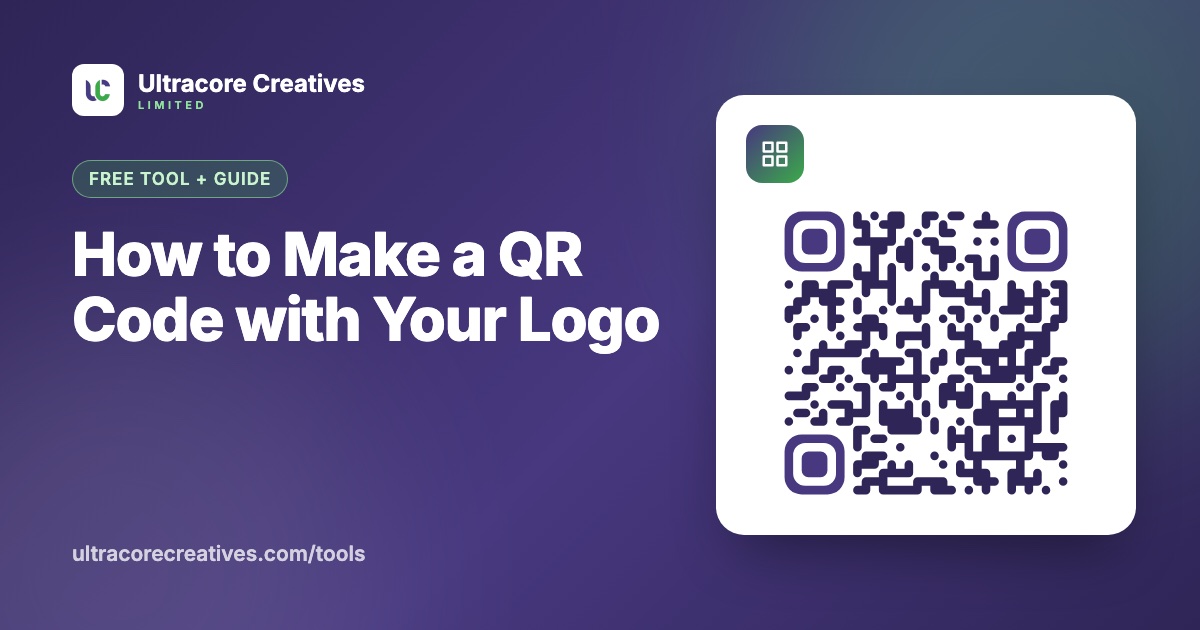
A plain black-and-white QR code works, but it looks like an afterthought. Adding your logo and brand colours makes it look like it belongs on your menu, flyer or product box. The catch is that every design choice can make the code harder to read, and a QR code that doesn’t scan is worse than none at all.
The good news: QR codes were built to survive damage. If you understand how, you can customise them safely.
Why a QR code can hide part of its pattern
Every QR code contains error correction: extra data that lets a scanner rebuild missing or damaged parts. There are four levels:
- L (Low): about 7% of the code can be lost
- M (Medium): about 15%
- Q (Quartile): about 25%
- H (High): about 30%
A logo in the middle covers part of the pattern, so the scanner has to rebuild what’s underneath. That only works with enough error correction. Always use level H when you add a logo. The trade-off is a denser pattern, because more of the code is spent on backup data.
How to create a branded QR code
- Open the free QR Code Generator and choose what the code should do: open a website, join Wi-Fi, save a contact card, send an email or start a text message.
- Enter your content. For websites, use your final URL. A static QR code can’t be changed after printing.
- Pick your colours. Use a dark colour for the pattern and a light background. Your brand colour usually works well for the corner “eyes”.
- Choose a pattern style (square, rounded or dots) and a corner style.
- Upload your logo. Error correction switches to High automatically.
- Check the scan test below the preview, then download a PNG for screens or an SVG for print.
Design rules that keep it scannable
- Keep strong contrast. Dark on light is what scanners expect. Light patterns on dark backgrounds (“inverted” codes) fail in many apps.
- Leave a quiet zone. The empty margin around the code helps the camera find it. Keep it at 4 modules (the small squares) for printing.
- Keep the logo small. Around 20–25% of the code’s width is the sweet spot. Bigger logos eat into the error correction you need for real-world damage like scratches and glare.
- Don’t touch the corners. The three large squares tell the scanner where the code is. Restyle them, but never cover them.
- Size it for the distance. A useful rule of thumb: the code should be about one tenth as wide as the scanning distance. A poster read from 3 metres needs a code around 30 cm wide. Never go below 2 × 2 cm.
Static or dynamic QR codes?
Many QR websites sell “dynamic” codes. These point to a short link on the provider’s server, which then redirects to your page. You can change the destination later and see scan statistics, but the code only works for as long as you keep paying. If the subscription ends, every printed code stops working.
Static codes store your content directly in the pattern. They never expire, don’t depend on anyone’s server and don’t track the people who scan them. For most businesses, a static code pointing to a page you control is the safest choice. If you want scan statistics, add UTM parameters to the link and read them in Google Analytics.
Wi-Fi QR codes for guests
A Wi-Fi QR code lets visitors join your network by pointing their camera at it, with no typing. It’s perfect for cafés, offices and Airbnbs. Behind the scenes it stores text like WIFI:T:WPA;S:NetworkName;P:password;;, which iPhone and Android cameras understand natively. Our generator creates it on your device, so your password is never uploaded.
PNG or SVG?
Use PNG for websites, emails, presentations and social media. Use SVG for anything printed or scaled: it’s a vector, so it stays perfectly sharp on a business card or a billboard, and designers can drop it straight into Figma or Illustrator.
Ready to make yours? The QR Code Generator is free, needs no sign-up and runs entirely in your browser.
Have a project in mind? Let’s talk it through.
A free, no-commitment call to understand what you’re building and how we can help.